
Those long time Windows Media Player 11 users might know about Mini toolbar which appears on taskbar when you minimize your Windows Media Player. The WMP 11 mini toolbar is very helpful when you are just listening to songs and want distraction free desktop.
Unfortunately Microsoft has removed mini toolbar from Windows Media Player 12 which comes as default on windows 7. Many users seeking way to get back mini toolbar on WMP 12 for those here is excellent finding from Winmatrix user Justin buser.
Justin Buser has got the workaround to get back mini toolbar on Windows 7 and this is definitely better solution over downgrading to Windows Media Player 11. Follow simple steps to get back WMP 12 mini toolbar on Windows 7.
Get Back Mini Toolbar of Windows Media Player 12 on Windows 7
1. Obtain a copy of C:\Program Files\Windows Media Player\wmpband.dll from a computer with WMP11 on it (for the same OS Architecture, i.e. 32/64 bit)
Download link for 64bit version of wmpband.dll is here.
Download link for 32bit version of wmpband.dll is here.
2. Place the file in the C:\Program Files\Windows Media Player\ directory on the computer with Windows 7 / WMP12
3. Stop the Windows Media Player Network Sharing service
4. Run a command prompt AS ADMINISTRATOR & execute the following command:
regsvr32 “c:\Program Files\Windows Media Player\wmpband.dll”
5. Restart the Windows Media Player Network Sharing service
6. Run Windows Media Player 12 and minimize it
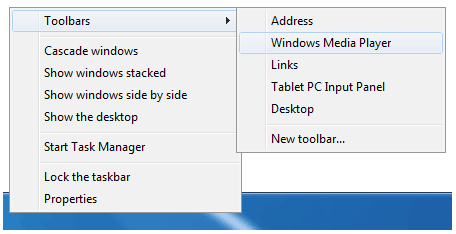
7. Right click on the Taskbar -> toolbars and select Windows Media Player from list
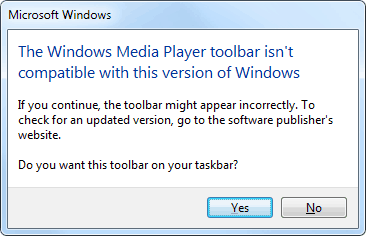
8. You may get following error message box click on yet and continue
That’s it, if you have any problems try performing the preceding steps after a clean reboot and before running windows media player.
Windows Media Player 12 with Mini Toolbar

Those long time Windows Media Player 11 users might know about Mini toolbar which appears on taskbar when you minimize your Windows Media Player. The WMP 11 mini toolbar is very helpful when you are just listening to songs and want distraction free desktop.
Unfortunately Microsoft has removed mini toolbar from Windows Media Player 12 which comes as default on windows 7. Many users seeking way to get back mini toolbar on WMP 12 for those here is excellent finding from Winmatrix user Justin buser.
Justin Buser has got the workaround to get back mini toolbar on Windows 7 ad this is definitely better solution over downgrading to Windows Media Player 12. Follow simple steps to get back WMP 12 mini toolbar on Windows 7.
Get Back Mini Toolbar of Windows Media Player 12 on Windows 7
1. Obtain a copy of C:\Program Files\Windows Media Player\wmpband.dll from a computer with WMP11 on it (for the same OS Architecture, i.e. 32/64 bit)
Download link the 64bit version of wmpband.dll is here.
(If you have 32-bit wmpband.dll let us know)
2. Place the file in the C:\Program Files\Windows Media Player\ directory on the computer with Windows 7 / WMP12
3. Stop the Windows Media Player Network Sharing service
4. Run a command prompt AS ADMINISTRATOR & execute the following command:
regsvr32 “c:\Program Files\Windows Media Player\wmpband.dll”
5. Restart the Windows Media Player Network Sharing service
6. Run Windows Media Player 12 and minimize it
7. Right click on the toolbar -> toolbars and select Windows Media Player
That’s it, if you have any problems try performing the preceding steps after a clean reboot and before running windows media player.



42 thoughts on “Get Back Windows Media Player 12 Mini Toolbar on Windows 7 Taskbar”
I just tried this fix and it worked perfectly on Win7 x64.
Thanks! Works on my Windows 7 x64!
one problem, media player 12,
http://www.upload.ee/image/407199/pilt.jpg
Exact same problem as Tasos above, anyone know why?
Tom
Yes, it’s because of the way the path for the RUN command is written, the same thing happened to me on a 32-bit laptop, so instead using the one provided, try this one:
regsvr32 “c:\program files\windows media player\wmpband.dll”
As you may notice, there is no Caps letters in it and the signs for “” are different than the ones presented in the tutorial above.
Btw, if you’ll decide at one point to reverse the process, try to execute the following in the RUN admin command prompt (also as ADMINISTRATOR):
regsvr32 “c:\program files\windows media player\wmpband.dll” /u
This will unregister the dll and then you can delete it.
Unfortunately, when playing videos/movies the mini toolbar doesn’t work properly, as I’m experiencing the same problem on both 32-bit and 64-bit machines that runs on Windows 7 with Windows Media Player 12. The mini video and visualization window doesn’t display any images and it remains completely blank, only the buttons function ok and the sound can be heard. But there is no image from the movie that is played in WMP 12 and also when you want to restore it from the toolbar with the main big window on desktop, it remains blank as well with only the sound running… Does anyone know what might be the problem and how it can be solved? Thanx in advance for any help!
Thanks Julius ,It really worked
thanks
this is awesome
I initially had the same problem as you Pritt. The reason for this was I am on a 64-bit machine and my media player is the x86 folder. So I needed to change the path to C:Program Files (x86)Windows Media Playerwmpband/dll
Also I’m still having the same issue as you Julius where my screen is blank while playing a video, if you figured out a way around this, I’d love to know how. The mini video on the toolbar was my favorite part of the it :/
To keep from having to reenable the toolbar every time I reboot, I run this from HKEY_LOCAL_MACHINESOFTWAREMicrosoftWindowsCurrentVersionRun:
@echo off
REM The Media Player toolbar will only instantiate if enabled while wmplayer.exe is minimized.
REM Start Media Player minimized and then restart the taskbar to enable the toolbar.
ECHO.
ECHO Initializing the Media Player toolbar.
ECHO Please wait…
tasklist /FI “IMAGENAME eq wmplayer.exe” 2>NUL | find /I /N “wmplayer.exe”>NUL
if “%ERRORLEVEL%”==”0” (
REM Windows Media Player is already running, so don’t start it again or it won’t minimize.
GOTO _SKIP_INIT
)
REM Start Media Player minimized.
REM Note that minimization will ONLY work the first time Media Player is started.
START “WM Player” /D “%ProgramFiles%Windows Media Player” /MIN wmplayer.exe
REM Wait for Media Player to minimize.
CHOICE /T 22 /C y /D y >NUL
:_SKIP_INIT
REM Restart the taskbar to enable the Media Player toolbar.
Taskkill /IM explorer.exe /F
CHOICE /T 1 /C y /D y >NUL
START “Explorer” explorer.exe
Anyone have a better idea?
can’t thank you enough
It didn’t work for me, I h8 windows 7 very much, I like XP because it works better
Great solution!
Work fine with :
regsvr32 “c:program files (x86)windows media playerwmpband.dll”
Ok everyone who is having trouble with the error service module or something failed to load Run:
CMD as administrator
Then type “cd..” without ”
then cd.. again
now type cd Program Files
then type cd Windows Media Player
Then type regsvr32 wmpband.dll
Thanks alot, I’ve tried alot of the other command prompts but they didn’t work for me. Yours did :) The only difference I changed is replacing
cd Program Files
with
cd Program Files (x86)
thanks I Was getting frustrated because i couldn’t find how to enable the toolbar(it was because it was Not There) And this fix made me completely happy. Thanx
help. I tried everything here. Still this message appears:
The module “c: program fileswindows media playerwmpband.dll” may not compatible with an x86 (32-bit) or x64 (64-bit) version of regsvr32.exe
PLEASE HELP ME. I getting out of patience here…
thank you so much.. :)
Thanks bro..Its absolutely working..At first I am failed to work with it,but this was very helpful to me.
Guys please follow the above procedure..
Thank you
It saves a new place for the bar, but doesnt hide the default icon, and neither displays it, help please :(
Thanks so much. Ive missed this feature so much. Worked perfectly first time
I didnt disable the network thing. Stupid MS took away the toolbar
They should have at least made a more better toolbar to put in W7!
works great !
Awesome!! Thanks for this workaround!
It keeps saying the system cannot find the path specified!
Make sure you open the cmd promt as Administrator.
To do so: type cmd in the start menu and then Crt+Shift+Enter
It worked.. thank you
also works on windows 8 using the x64 version of the dll. Just make sure you don’t accidentally post it into the x86 folder!
Yay! Worked! Thank you! I hate it when Windows takes away the GOOD things they have.
thx it works for windows 8 too! i failed at first cuz i forgot to run cmd as admin.. only prob is that theres both normal windows media player minimised as well as the toolbar simultaneously and you have to close the player then continue from paused music but its a minor thing to live with.
Awesome walk-through. I just did this for Windows 7 x64. Works like a champ. Thanks!
THANK YOU ;_;
Thanks! It works!!
a little bit buggy but better than nothing!
thank you very much XD
Only just found this but bookmarked it so I don’t need to go searching again.
Had to mess around using the different command prompt line, but it’s worked.
Thank you so much.
Excellent instructions, worked perfectly on my Win7 64-bit, thanks!
I know I’m massively late (2 years exactly) to say this, but the reason why it’s not working is because the quotation marks are not the same ones your keyboard makes. Simply paste it into CMD (right click > paste) and change the “” Marks with “” (the ones your keyboard makes. The command should then excute so long as you shut down WMP media sharing.
I’m a bit late (2 years late) but show the toolbar by;
1) Minimize Windows Media Player
2) Enable Toolbar
3) Bring up Windows Media Player again
4) Close Windows Media Player
The toolbar is now all you need. Restarting your computer will break the toolbar however and you’ll need to disable the toolbar and start over.
Hoping this helps everyone who sees it.
very nice, this is all i need, but it can’t play video
Thanks I copies yours and really worked. just have to open wmp minimize then right click toolbar and TADAAAA!!! thanks man