
Top 4 Ways to Fix Minecraft Problem Moving Error Code 5
Are you facing the Minecraft Error code 5 while launching the game on your Windows computer? Well, you are not alone. It’s a common error that Minecraft users are facing
10 Best Audio Enhancer/Equalizer Software For Windows 10
First of all, let’s face it. Not all equipment can guarantee a high volume level and decent audio output quality. This applies, for example, to laptops without connecting speakers. To
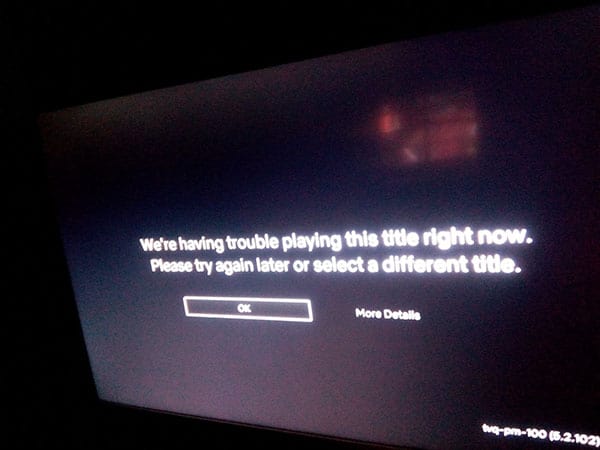
How to Fix Netflix tvq-pm-100 (5.2.5)
Do you keep getting tvq-pm-100 (5.2.5) error on Netflix app while trying to play different titles? the error tvq-pm-100 (5.2.5) is also accompanied by following message, “We’re having trouble playing
10 Fixes For Gears of War 4 Freezing and Crashing on PC
Gears of War 4 crashing or freezing on PC has been reported by several users. Thankfully the issue can easily be fixed if you can follow the below fixes. Gears

How to Download Douyin on iPhone and Android
How can I get the Douyin app outside China or even in the United States? Read on to find out. We’ll show you how to install the Douyin app on

How to Fix Rear Speakers Not Working [Windows 10]?
Are your rear speakers not working on Windows 10? Here are the top 3 troubleshooting methods to fix the issue. Scroll down to know everything in detail. A number of
How to Fix SWTOR Stuck At Verifying 0%
Encountered SWTOR Verifying 0% stuck issue ?? read the following guide to quickly fix it! Star Wars: The old republic, maybe a decade-old game but it still boasts a good
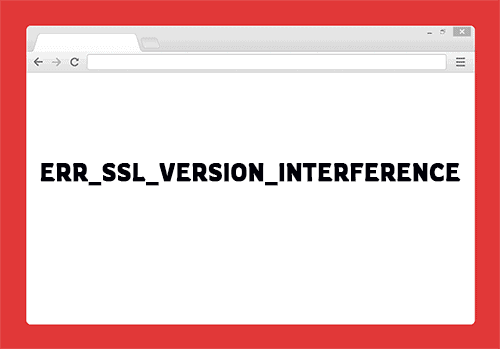
Fix ERR_SSL_VERSION_INTERFERENCE Error in Google Chrome
The ERR_SSL_VERSION_INTERFERENCE Chrome error is most commonly seen in the Google Chrome browser when a website uses TLS 1.3. The error is mainly caused by trying to reach a website

Logitech Download Assistant – How to Download, Remove or Enable/Disable
Owning devices is one heck of a responsibility you are given when you buy one. Keeping updated on new features and specifications introduced, downloading updates, checking up on why one
Lenovo Laptop Won’t Boot or Turn On [SOLVED]
Lenovo laptops are pretty robust when it comes to its build quality and we are sure ThinkPad users would agree with us. Unfortunately, it’s not just physical build quality that
Dragon Age Inquisition Won’t Launch on Windows 10? 8 Ways to Fix it Now
Dragon Age Inquisition won’t launch on your Windows 10? Well, it’s a common issue that gamers across the world are
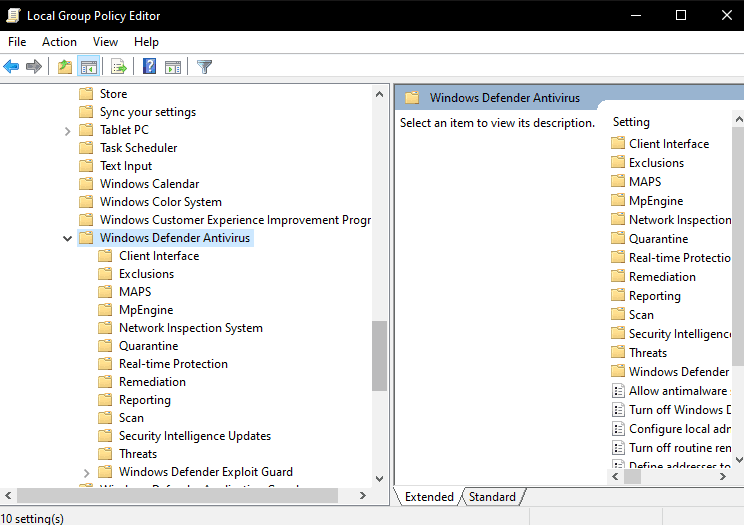
Fix Antimalware Service Executable High CPU & Disk Usage
Antimalware Service Executable (Also knows as MsMpEng.exe) is a service administrated by Windows Defender. This service basically scans the system
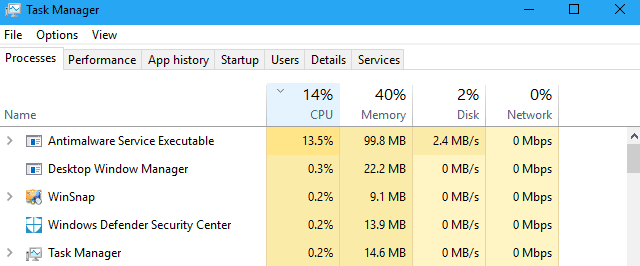
How to Stop/Disable Windows 10 Antimalware Service Executable
Windows Defender is part of Windows 10 and is the successor to the free antivirus for Windows 7. This ensures

