
Are you a procrastinator and fed up of wasting your time on the Internet instead of doing some real work? We understand because we’ve been there and that is exactly why we have done an extensive research and found these are the 5 Best Ways to block websites on the chrome browser. You will be able to block those websites that eat up a lot of your time. The blocking works in magical ways and you will not be able to browse websites like Facebook, YouTube, Reddit, and more while you’re on the working clock. We have listed 5 best extensions to help you improve your productivity while you’re using Chrome.
Why do you need these extensions?
Distractions are always productivity killers. Especially for people who work online all the day, social networks and video sharing sites are the biggest distraction points. Spending too much of time on these websites will definitely reduce the efficiency of your work. That’s why we have plenty of web applications and browser extensions available to block or restrict the amount of usage on these websites. Previously, I wrote about a set of Android apps to improve your productivity and a Chrome extension called TabZolo to focus on your work. Today I’ve come with a list of Chrome extensions to block all the distracting websites temporarily.
Strict Workflow
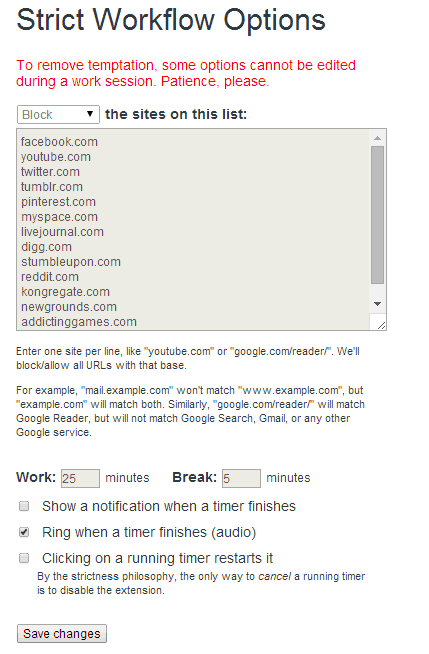
It is important to take breaks at regular intervals in the mid of your work to improve the productivity. Strict Workflow for Chrome helps you to do that. By default, the extension will allow 25 minutes to work and 5 minutes for a break. You can change timings in the settings of the extension. There will be a list of websites like Facebook, Twitter, YouTube, etc., which will be blocked during the work time. You can also add your own websites to the list. Also, you cannot edit the settings or change time during the work time. Any changes you need to make can be made only during the break time.
Stay Focusd
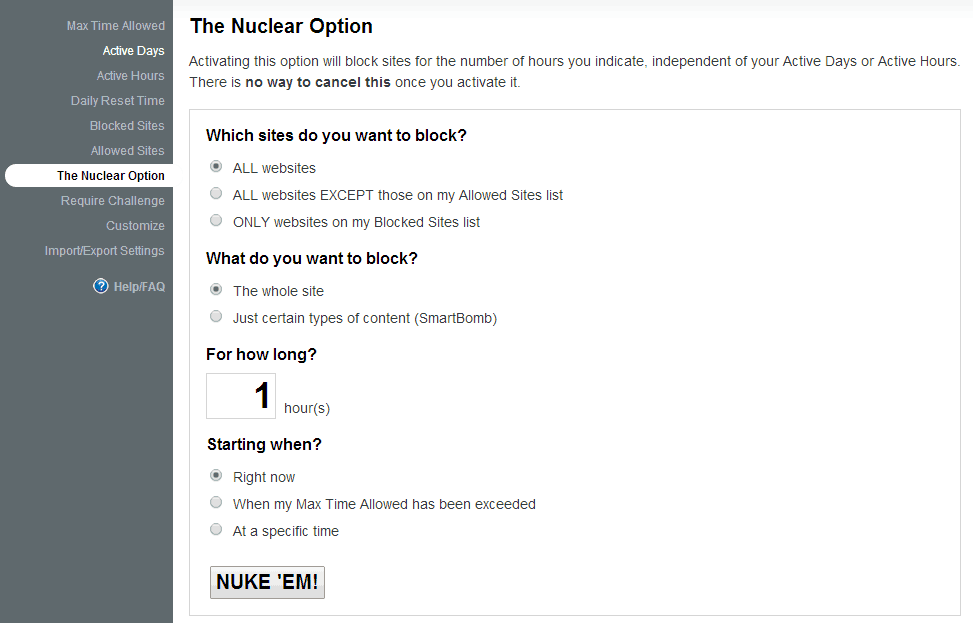
Stay Focusd is one of the popular productivity apps for Chrome and Firefox. The extension lets you restrict the usage time on distracting websites. On the options page, you can choose the amount of time you need to use that particular website per day. The list of websites you need to restrict can be the added to “Blocked Section” on the settings. The daily reset time can also be changed as you wish, but any change you make will reflect only after 24 hours. You can read the full review of this application here.
Time Warp
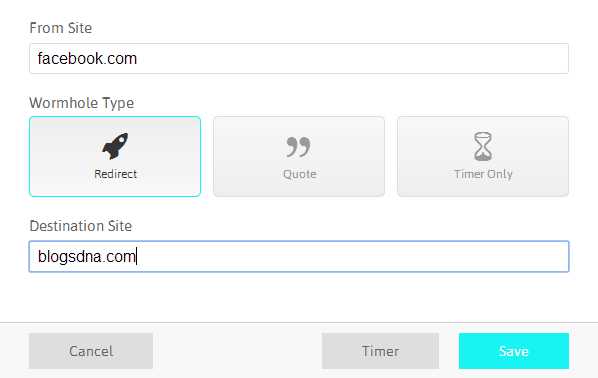
Similar to other sites blocking extensions, you can add website links to Time Warp and all those sites cannot be accessed until you remove them. An interesting feature in this application is, everytime you try to open the blocked sites, it will display a motivating quote or a message to get back to your work. You can choose three different actions to perform when you open a blocked site. They are called Wormholes. Either you can make it display a quote or a timer showing how much time you’ve spent on that site or redirect you to the website you work.
Block Site
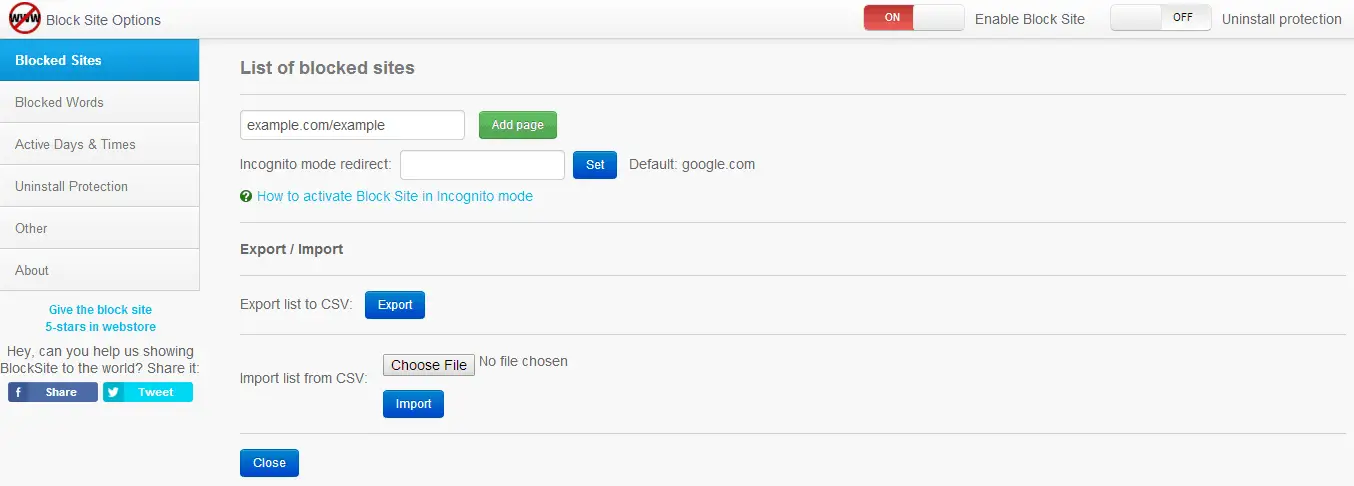
Block Site is an ultimate website and the keyword restriction app for Chrome. Not only the website URLs, also you can block specific keywords, adult websites, etc., with the help of this extension. It also acts as a parental control app for Chrome. You can set a password to access “Settings” and uninstall the extension from your browser. Entertainment sites can be limited to a time period in different days of the week. This will protect your kids from wasting time on the Interent for a long time.
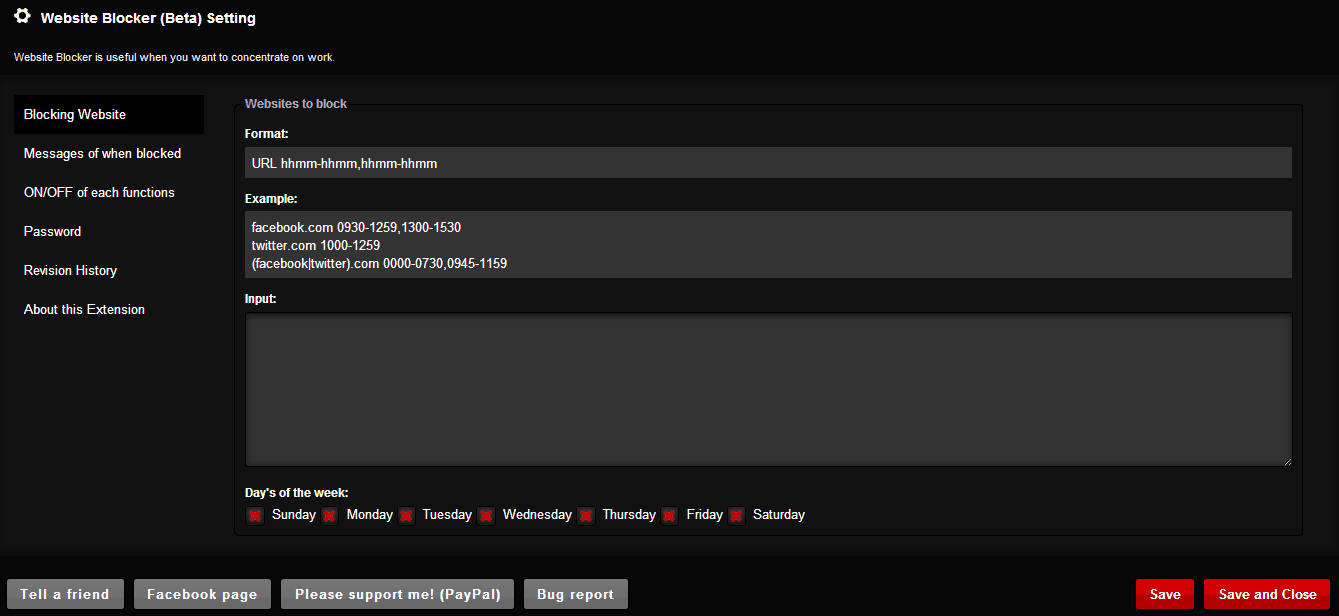
Website Blocker
Website Blocker is yet another simple site blocking extension for Chrome. All the basic functions like blocking the distracting websites on different timings, warning messages, etc., will be available on the extension.
To customize the app For Blocking The Website.
- Go to the “Settings” page and start adding the websites that you want to block.
- Instead of completely blocking the website, you can restrict the usage for a particular time from the Options page.
- The app lets you quickly block or unblock the websites to improve your productivity.
To make these extensions work even in Incognito mode, you have to enable the option in Settings->Extensions->Allow in Incognito Mode. Try this site restricting extensions to improve your productivity and share your experience with us in the comments. Thanks for reading, do share this post with your friends.


