
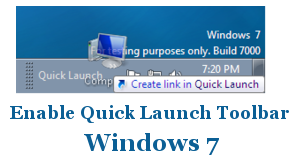
Windows 7 has several new features and some of old features of Windows vista and XP has been removed or disabled in windows 7. One such feature is Quick Launch which is by default disabled in windows 7. Quick Launch is used to open a program quickly from a shortcut on the taskbar with one click.
Since Many Windows users has been using Quick Launch bar from ages, Non availability of Quick launch in Windows 7 beta annoying them a lot. Well truly speaking this feature is still present in windows 7 beta but it has been disabled by default. Here is small guide how to enable and disable quick launch bar in windows 7.
How to Enable/ Disable Quick Launch in Windows 7
1. Click on Start and type gpedit.mst at run
2. Now navigate to User Configuration, Administrative Templates, and Start Menu and Taskbar in left pan of group policy edit window.
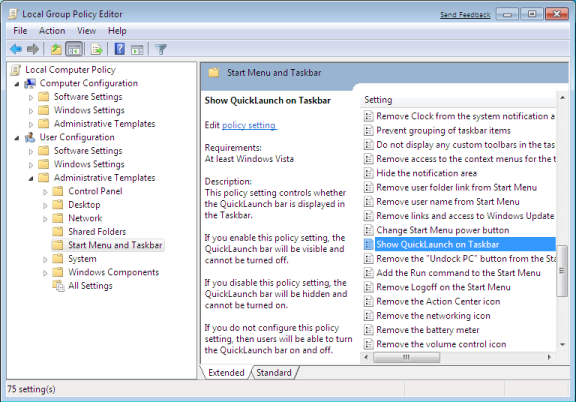
3. Now locate Show QuickLaunch on Taskbar in right pan and double click on it.
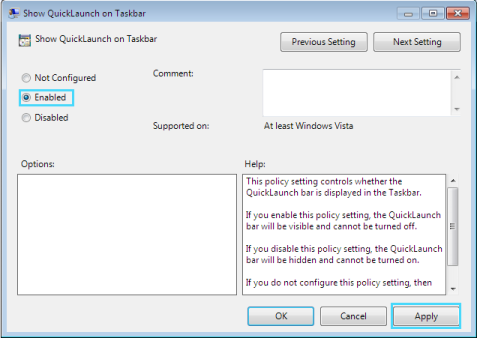
4. Select Enable click apply and Press ok.
5. Now Right click on Taskbar select Toolbar->New toolbar
6. Navogate to C:\Users\(user name)\AppData\Roaming\Microsoft\Internet Explorer
7. Now SelectFolder Quick Launch
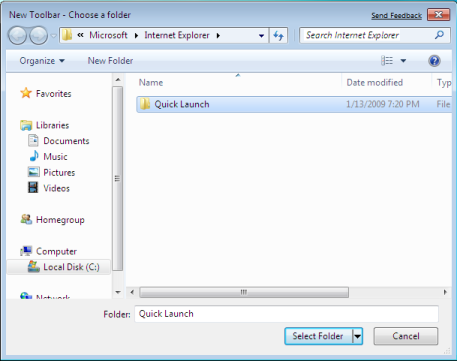
8. Now You Should see Quick Launch Toolbar on Taskbar
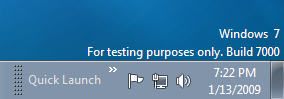
How to Add Shortcut to QuickLauch Bar in Windows 7
Click any desktop shortcut and drag on QuickLaunch bar check out below screenshot
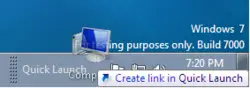
You can simply drag Quick Launch at left side towards Start menu to make it look like your windows vista and XP Quick Launch Bar.
Screenshot of Taskbar with Quick Launch Bar




11 thoughts on “How to Enable – Disable Quick Launch Toolbar in Windows 7”
gpedit.msc not gpedit.mst
thx
You can use this tutorial to re-enable the quicklaunch bar in Windows 7 and make your task bar work exactly like it did in XP: http://triso.me/Win7QuickLaunch
that should be gpedit.msc instead of gpedit.mst
So I’ve enabled the toolbar. How do I get rid of the label for the toolbar and icons? With XP, the labels do not show up by default.
Oh, never mind. A little bit more googling told me how. Right-click on the tool bar divider (to the left of the “Quick Launch” title) and disable “Show text” and “Show title”. Thanks to Tim Sneath’s blog at http://blogs.msdn.com/tims/archive/2009/01/12/the-bumper-list-of-windows-7-secrets.aspx. Sometimes an old dog can learn new tricks!
I really don’t see the point in this.
Although it is a very good tip, the taskbar does all that without the quick launch now.
@Andy,
I totally agree with you and even posted a comment to my own post :) The Taskbar does all that QuickLaunch does and more. The only complaint is the space each icon takes up which on a laptop or notebook could be a lot. I’ve read the next release will collapse the icons a little closer together but we’ll have to wait and see.